
Introduction
Display Form Entries Pro allows you to mark specific submissions as featured so they appear prominently in your entry listings.
Featured entries are automatically moved to the top of the display, making them easy for visitors to notice.
This feature is useful when you want to highlight:
- Important submissions
- Premium listings
- Featured members
- Recommended products
Requirements
Before using this feature:
- Gravity Forms must be installed and active
- Display Form Entries Pro must be activated
- Your form must already contain submitted entries
Marking an Entry as Featured
Follow these steps to mark an entry as featured.
Step 1 — Open the Entries Page
- Go to Forms → Entries in the WordPress dashboard.
- Select the form whose entries you want to manage.
Step 2 — Star the Entry
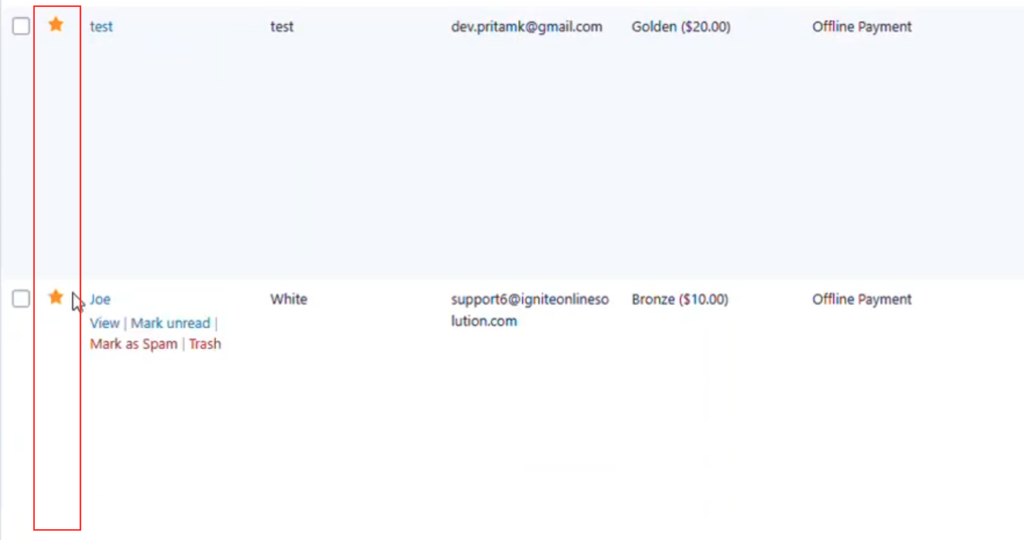
In the entries list you will see a star icon next to each entry.
- Click the star icon beside the entry you want to feature.
- The entry will now be marked as featured.
A yellow star indicator will appear showing that the entry is featured.
How Featured Entries Appear
When an entry is starred:
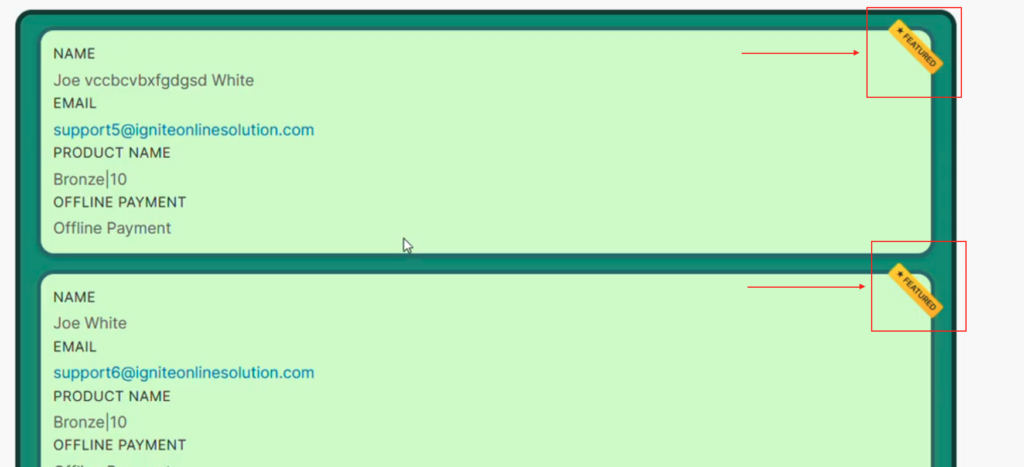
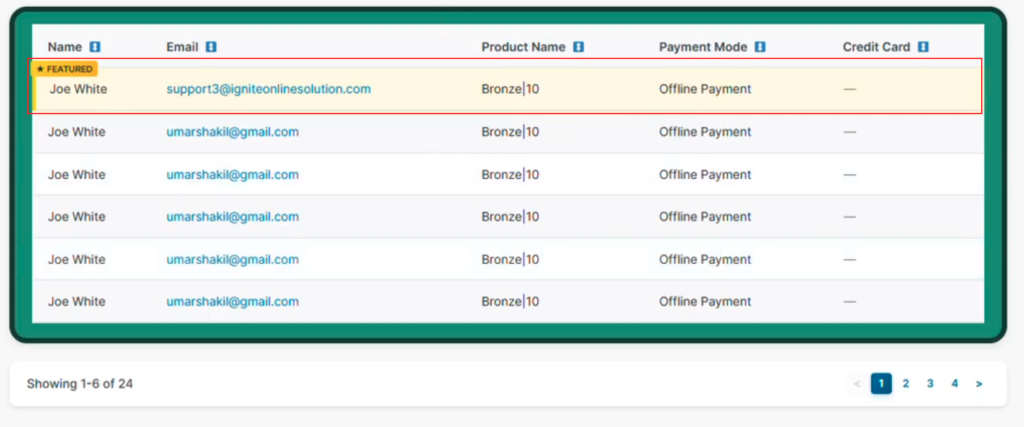
- A featured label or star indicator appears on the entry.
- The entry is automatically moved to the top of the listing.
This ensures that important entries are displayed before others.
Supported Display Views
Featured entries work across multiple display layouts, including:
- List view
- Card view
Regardless of the layout used, featured entries will always appear before regular entries.
Removing Featured Status
If you no longer want an entry to be featured:
- Go back to Forms → Entries.
- Click the star icon again to remove the featured status.
Once removed:
- The star indicator disappears.
- The entry returns to its normal position in the listing.
Example Use Case
Vendor Directory
A website displays a directory of vendors submitted through a form.
The site owner wants to highlight a few preferred vendors.
By starring these entries:
- Featured vendors appear at the top of the directory
- Visitors immediately see the most important listings first
Best Practices
• Use featured entries to highlight important content.
• Avoid featuring too many entries at once.
• Combine this feature with advanced filtering and styling for better layout control.
Troubleshooting
Featured entry does not appear at the top
Check that:
- The entry has been starred in the entries list
- The page displaying entries has been refreshed
Featured label not visible
Make sure the entry is properly marked as featured in the entries panel.