
This guide explains how to display form entries using the Display Form Entries plugin across different WordPress editors, including Gutenberg (Block Editor), Elementor, and classic text or widget areas using shortcodes. This article covers all available display methods and layout options for showing Gravity Forms entries on the front end of your website.
Whether you are building pages visually or working inside widgets or layouts, you have flexible options to display entries exactly where you need them.
Option 1: Using the Block Editor (Gutenberg)
This is the recommended and easiest method when working inside the WordPress Block Editor.
How to add the block
- Open the page or post in the WordPress Block Editor.
- Click the ( + ) Add Block button.
- Search for Display Form Entries.
- Select the block to add it to your page.
Block settings and controls
Once the block is selected, you can configure everything from the right-hand sidebar:
- Choose the Form you want to display entries from
- Select a Template View (Table, List, or Cards)
- Pick which Fields should be visible
- Adjust layout-related options provided by the block
Live preview
The block includes a live preview, so you can see how your entries will appear on the front end directly inside the editor. This makes it easy to fine-tune the layout without guessing how the output will look.
Choosing a Template View
Display Form Entries provides multiple layout options depending on how you want your data to appear. Each template serves a different purpose depending on the type of content you are displaying.

Table View
Best for structured data such as directories, reports, submissions lists, or administrative overviews. It works well when you need multiple columns visible at once.
Grid View (Cards)
Ideal for profile-style layouts or image-based entries. This view presents each entry in a visually distinct card layout, making it suitable for vendor directories, portfolios, or listings with featured images.
List View
A simple vertical layout that displays entries one after another. This is useful for basic listings where visual separation is not the primary focus.
Linked List View
Displays summary information in a table-style format while allowing users to click through to a dedicated Single Entry page for full details. This is ideal for layered directory experiences where you want to avoid overwhelming visitors with too much information at once.
Option 2: Using Elementor Page Builder
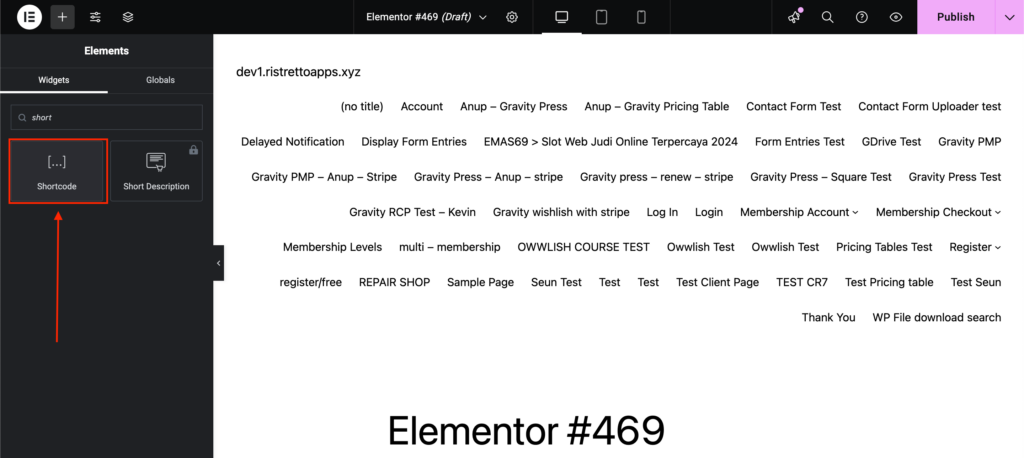
If you are using Elementor, the Display Form Entries block itself will not appear as a native Elementor widget. However, you can still display entries using shortcodes, which work fully inside Elementor.
How to use Display Form Entries in Elementor
- Open your page in Elementor.
- Drag a Shortcode widget onto the page.
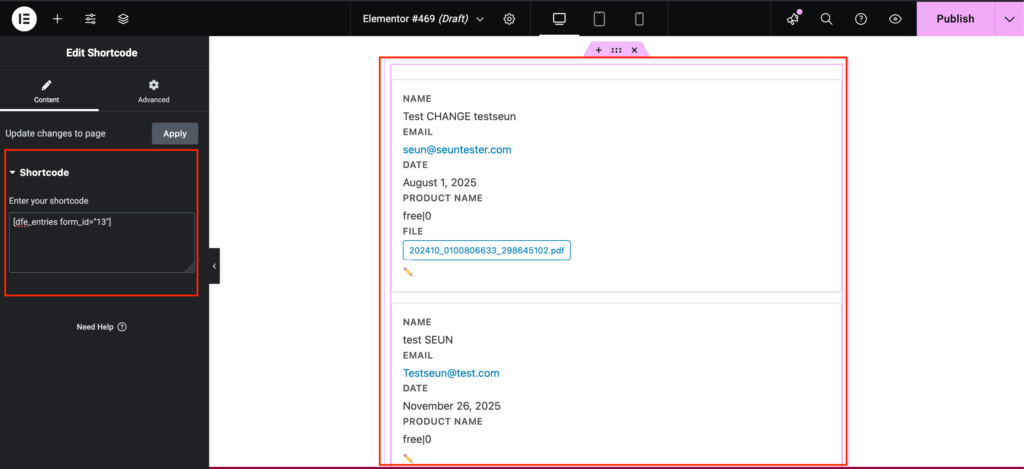
- Paste one of the supported shortcodes (see examples below) into the shortcode field.
- Save and preview the page.
Elementor will render the shortcode output on the front end exactly as expected.
Option 3: Manual Shortcode Usage (Classic Editor, Widgets, or Builders)
Shortcodes are ideal when blocks are not supported or when working inside:
- Elementor
- Classic Editor
- Text widgets
- Theme builders
- Custom layouts
Available shortcodes
Display multiple form entries
Displays all entries for a specific form:
[dfe_entries form_id="XX"]
Replace XX with your actual form ID.
Display a single specific entry
Displays one entry using its entry ID:
[dfe_entry entry_id="XX"]
Replace XX with the entry ID you want to display.
Display a specific field value (Pro version required)
Displays a single field value from a specific entry:
[dfe_field field_id="XX" entry_id="YY"]
Replace:
XXwith the field IDYYwith the entry ID
Selecting Fields to Display (Best Practices)
When displaying entries publicly, it’s important to carefully choose which fields are visible.
Avoid displaying:
- IP addresses
- Internal admin notes
- Payment details
- Hidden or administrative fields
Only display information that is intended for public viewing, such as names, titles, descriptions, categories, or images.
Keeping your displayed fields intentional helps maintain privacy and ensures a clean, professional layout.
Pagination Behavior
When the number of entries exceeds the configured per-page limit, pagination automatically appears below the list.
Pagination helps:
- Improve page performance
- Make large directories easier to browse
- Prevent long, overwhelming pages
If you are using Featured/Starred entries (Pro), featured entries will remain pinned at the top of the first page. You can control how many entries appear per page using the available block settings.
Search Functionality
If search is enabled within your layout, visitors can search through displayed entries.
Search applies to:
- Visible fields
- Searchable text-based fields
This feature is especially useful for directories, member portals, or public listings where users need to quickly locate specific entries.
What Happens If No Entries Exist?
If the selected form does not yet have any submissions, nothing will be displayed on the front end.
The block will appear empty until at least one entry has been submitted.
If entries are not appearing as expected:
- Confirm the correct form is selected
- Ensure the form has at least one submission
- Check that fields are selected for display
Which option should I use?
- Gutenberg users: Use the Display Form Entries block for the best visual editing experience and live preview.
- Elementor users: Use the Shortcode widget with the supported shortcodes.
- Widgets or Classic Editor: Use shortcodes directly in text areas.
All methods use the same underlying functionality, so the output and behavior remain consistent across editors.
Need help?
If you’re unsure which form ID, entry ID, or field ID to use, or if something isn’t displaying as expected, please contact our support team and include:
- The editor you’re using (Gutenberg, Elementor, Classic)
- The shortcode or block configuration you’re trying
- Screenshots, if possible
We’ll be happy to help you get everything set up correctly.