
Introduction
Display Form Entries Pro allows you to control exactly which form fields appear when entries are displayed on the frontend.
Instead of showing every field submitted in the form, you can select only the fields you want to display.
This helps you create cleaner layouts and display only the most relevant information.
For example, you might choose to show:
- First Name
- Last Name
- Product Name
while hiding other fields that are not necessary for visitors to see.
Requirements
Before using this feature:
- Gravity Forms must be installed
- Display Form Entries Pro must be activated
- A page must already contain the Display Form Entries block
Selecting Specific Fields to Display
Follow these steps to choose which fields should appear.
Step 1 — Edit the Page
- Go to the page where your form entries are displayed.
- Open the page in the WordPress block editor.
- Select the Display Form Entries block.
Step 2 — Choose the Fields
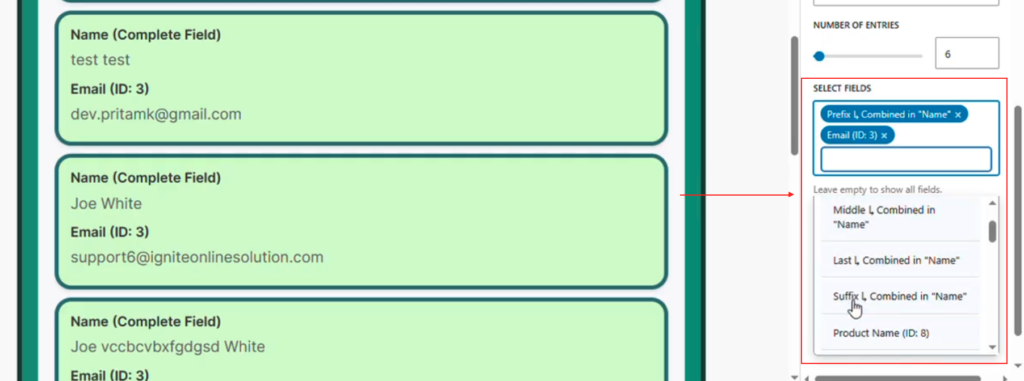
In the block settings panel, locate the field selection settings.
Here you will see a list of available fields from the selected Gravity Form.
Examples include:
- First Name
- Last Name
- Product Name
- Entry ID
You can enable or disable fields depending on what you want to show.
Step 3 — Select the Desired Fields
Check the fields you want to display.
For example:
First Name
Product Name
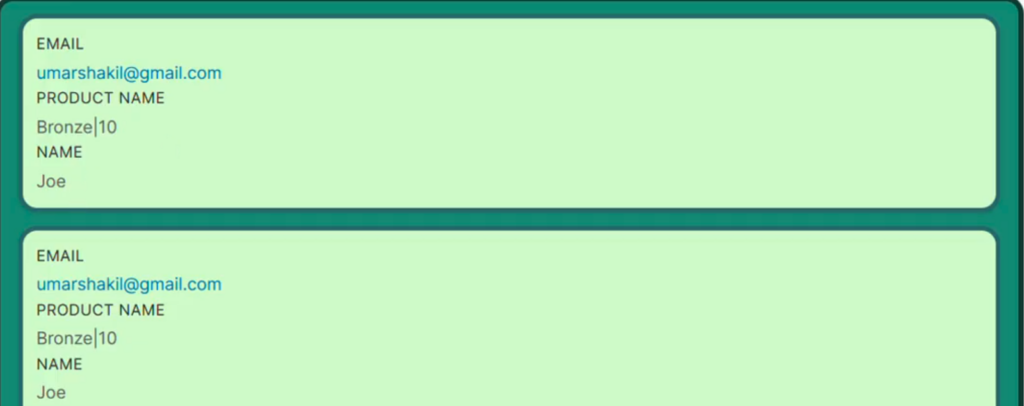
Only the selected fields will appear in the entry display.
Step 4 — Save the Page
Click Save or Update.
When the page reloads on the frontend, only the selected fields will be visible.
Displaying a Single Field
You can also configure the display to show only one field.
For example:
- Only Product Name
- Only Last Name
- Only Email
This can be useful for simplified listings or special layouts.
Showing All Fields Again
If you want to return to the default behavior:
- Select all available fields again in the block settings.
- Save the page.
The display will then show all fields from the entry.
Example Use Case
Product Listing
A form collects product information with many fields.
Instead of showing every detail, the site owner displays only:
- Product Name
- Price
- Seller Name
This creates a simple product listing without overwhelming users with unnecessary information.
Best Practices
• Display only the fields relevant to visitors.
• Avoid showing sensitive information such as internal notes or IDs.
• Use fewer fields in directory layouts to keep the design clean.
Troubleshooting
Fields are not appearing
Check that:
- The correct form is selected in the block settings.
- The fields are enabled in the field selection panel.
Too many fields are displayed
Review the field selection settings and disable unnecessary fields.